Crops
When to use
Use Crops to register the agronomic model that will be used in production plans.
Pre-conditions
- Logged in.
- Organization selected.
- Resources registered when the crop requires associated inputs or materials.
Sample data used
- Crop:
Alface Crespa Demo. - Cycle: value defined as the screen allows.
- Resources: fictitious inputs created in the Resources module.
Step by step
List crops
- Go to
/:organizationId/crop/list. - Check existing crops.
- Use search, filters, or available actions on the screen when present.
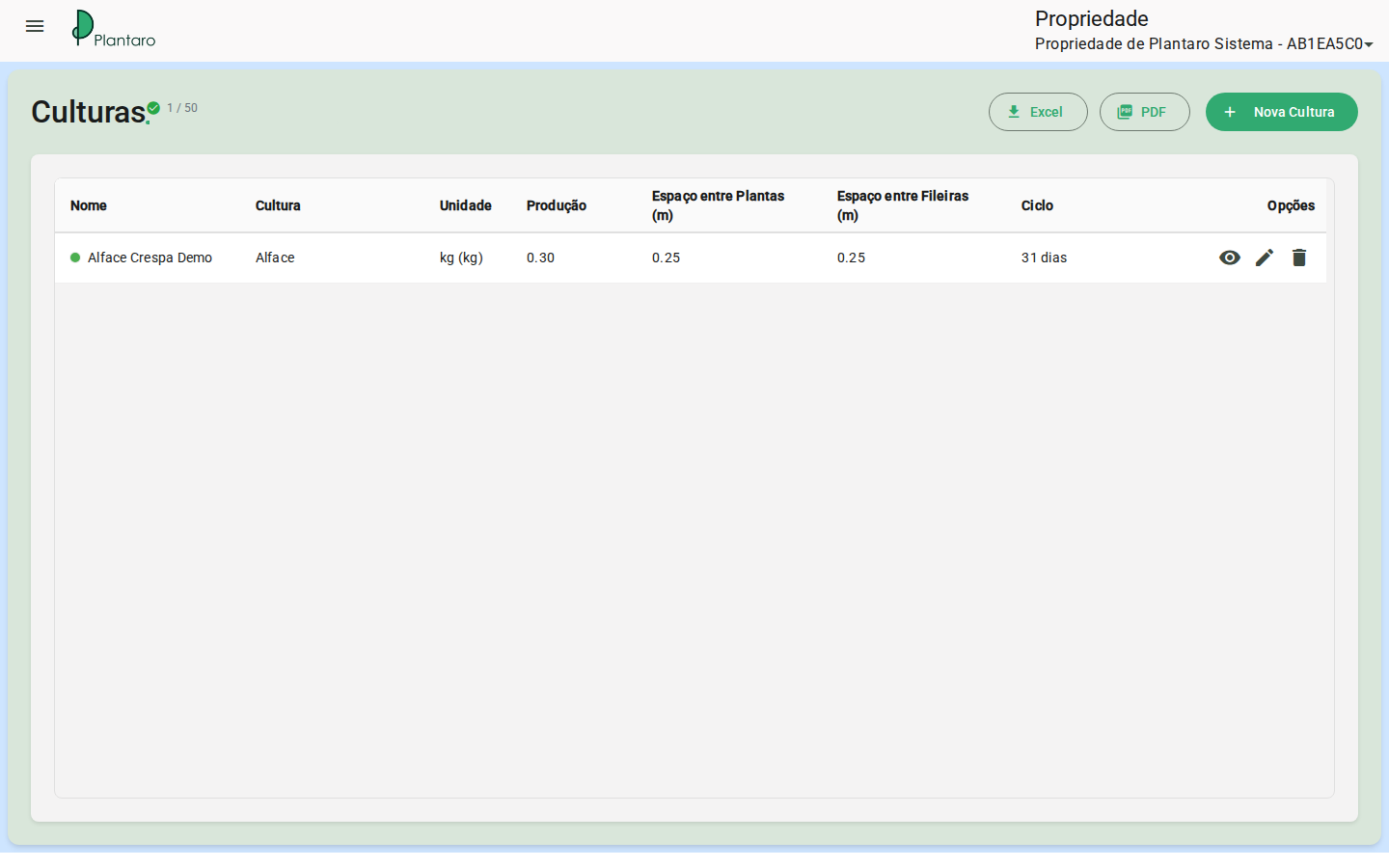
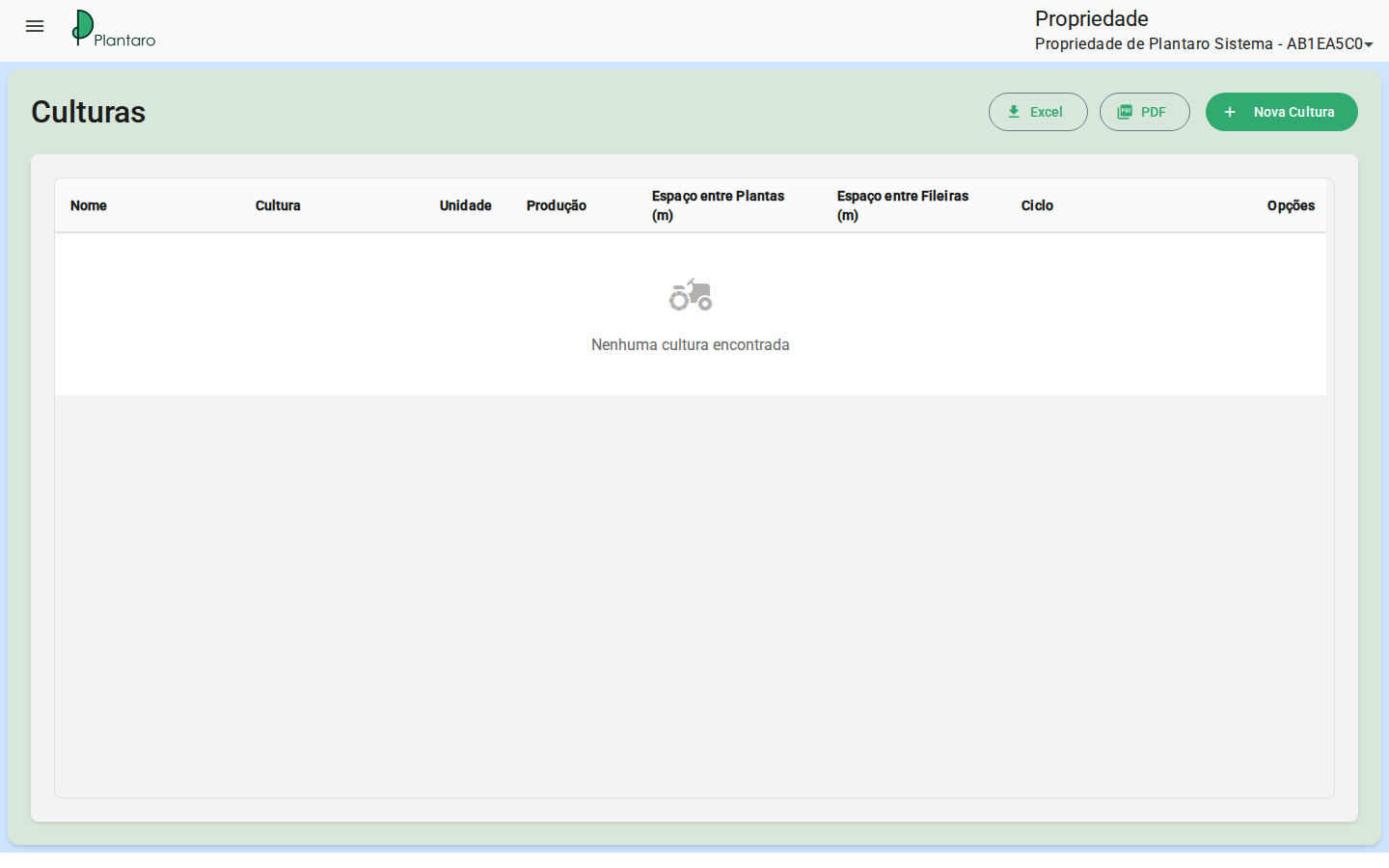
Expected result: the list shows registered crops or an empty state guiding the first registration.
Register a crop
- Go to
/:organizationId/crop/register, or use the new-registration action from the list. - Fill in name, cycle, and other required fields shown.
- Save the crop.
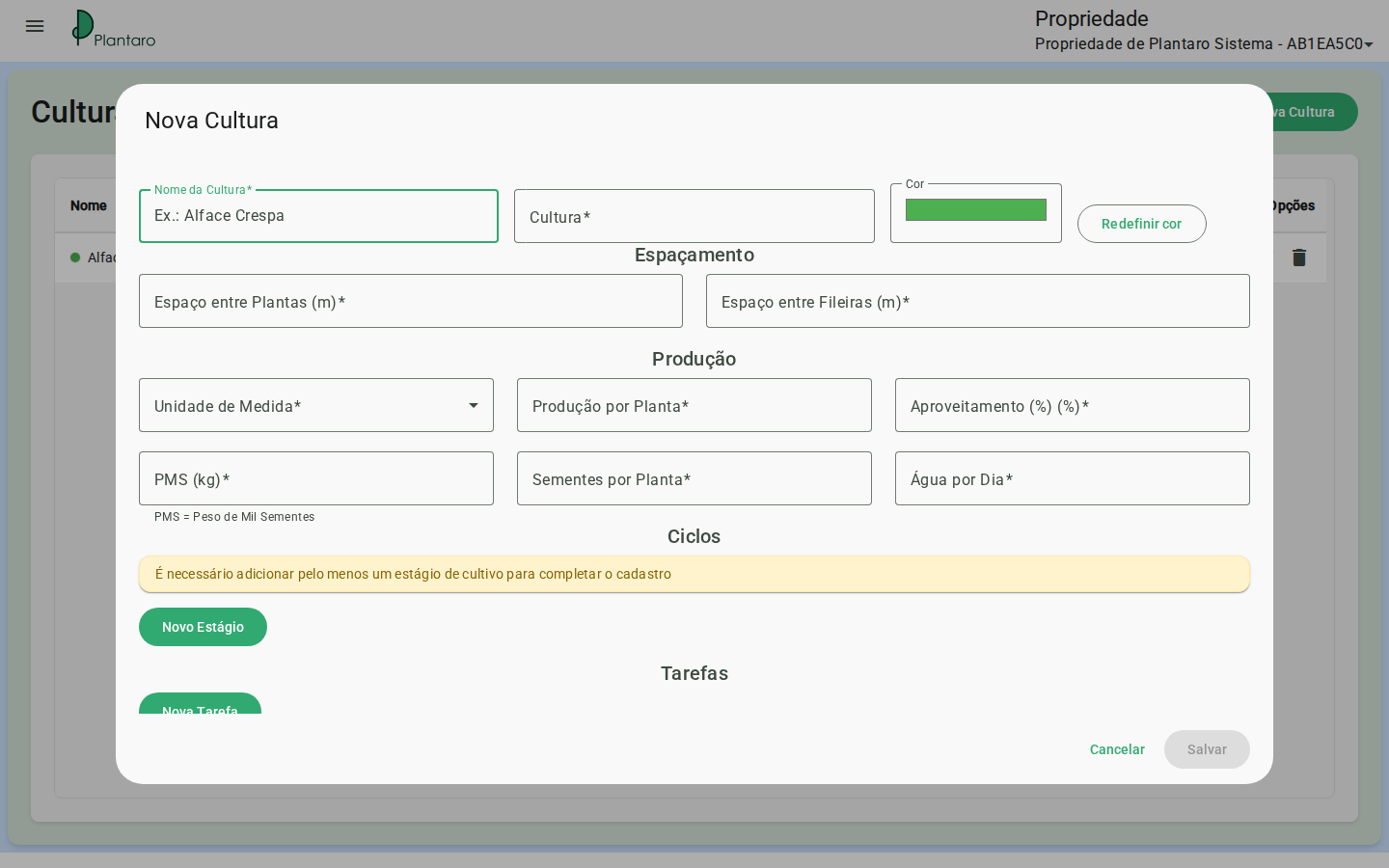
Expected result: the crop becomes available for selection in production plans.
Stages
- Open the crop's registration or edit screen.
- Fill in the cultivation stages as the UI allows.
- Save the changes.
Expected result: stages help guide tasks and follow-up.
Tasks
- On the crop screen, locate the associated tasks section.
- Register tasks such as preparation, planting, irrigation, or harvest, according to the available fields.
- Save.
Expected result: associated tasks can feed operational follow-up when used in plans.
Resources
- On the crop screen, locate the resources or inputs section.
- Select previously registered resources.
- Enter quantities only if the screen requests it.
Expected result: the crop is prepared for consumption calculations when the planning flow uses this data.
Edit crop
- Go to
/:organizationId/crop/register/:id. - Change only the necessary fields.
- Save and return to the listing.
Expected result: the listing reflects the updated data.
Validations and listing actions
- At least 1 stage is required to save the crop.
- A task's start day (
start_day) must fall within the crop's total cycle. - A task's frequency in days (
frequency_days) cannot exceed the total cycle. - A task's end time must be later than its start time.
- The listing allows viewing, editing, deleting (with dependency checks), and exporting to Excel/PDF.
Errors and empty states
-
Missing required field: fill in the fields highlighted by the UI.
-
Resources do not appear: register categories, suppliers, and resources first.
-
Empty crop list: happens in new organizations, before the first registration.