Tasks, timeline, plantings and harvests
When to use
Use this guide to track operational execution after a production plan has been saved.
Pre-conditions
- Production plan saved.
- Crop with tasks or calendar configured.
- Organization selected.
Sample data used
- Production plan of
Alface Crespa Demo. - Beds linked to the plan.
Step by step
Tasks
- Go to
/:organizationId/planning/tasks. - Check pending and completed tasks.
- Use status, date, or plan filters when present.
- Open a task to check details or record execution.
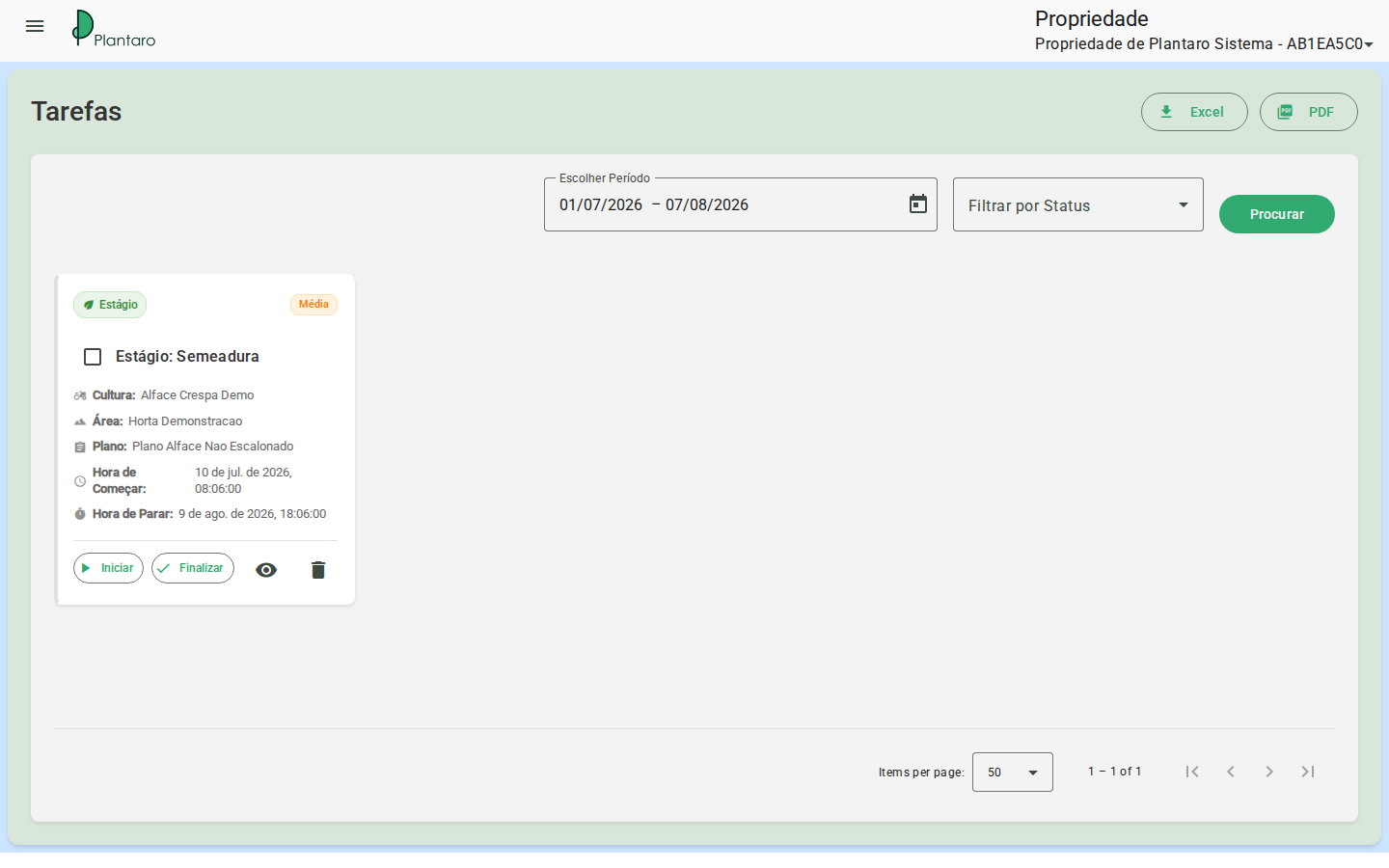
Expected result: the screen shows tasks generated or associated with the planning.
Each task can be started, finished, or have its completion undone when allowed. Upon completion, the system may request the actual start/end time, the executed quantity, and adjustments between planned and executed resources.
Timeline
- Go to
/:organizationId/planning/timeline. - Navigate through the desired period.
- Check plantings, harvests, and other planned tasks.
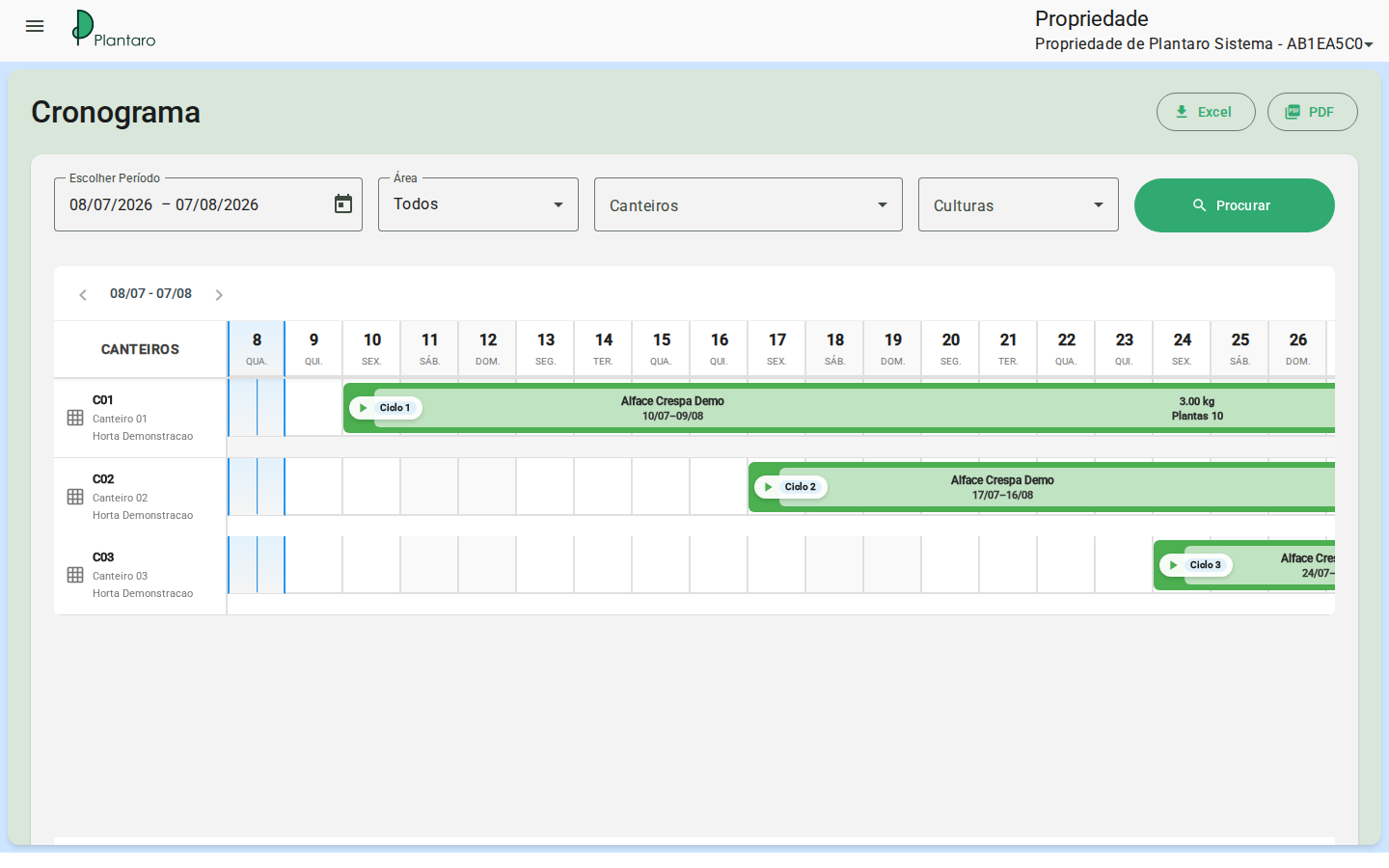
Expected result: the timeline shows the operation's chronological sequence.
Upcoming events
- Go to
/:organizationId/planning/upcoming. - Check upcoming plantings and upcoming harvests.
- Use filters or sorting when available.
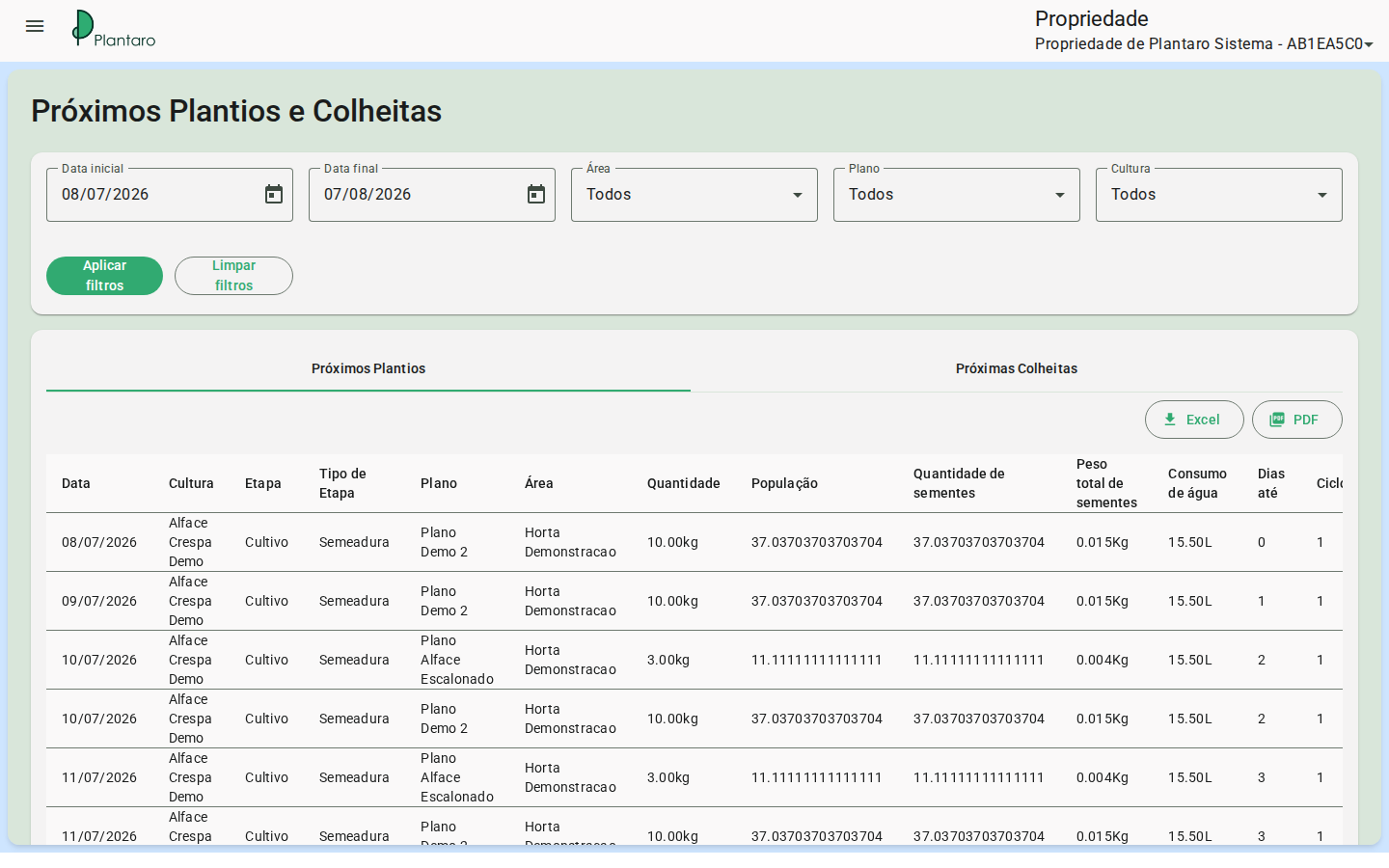
Expected result: the user identifies what needs to happen in the coming days.
Dashboard with data
- After saving plans and generating tasks, go to
/:organizationId/dashboard. - Check whether the indicators reflect the operational volume.
Expected result: the Dashboard shows indicators consistent with the planning.
Errors and empty states
- No tasks: confirm whether the plan was saved and whether the crop has associated tasks.
- No upcoming events: check the plan's dates and filters.
- Incorrect pending tasks: review the active organization, period, and status.