Users, organization and subscription
When to use
Use this page to check the active organization, manage Users, and understand Subscription, Plan, Usage, and Invoices.
Pre-conditions
- Logged in.
- Administrative permission in the organization.
- Sandbox environment for signup and billing tests.
Sample data used
- Organization: authorized sandbox.
- Fictitious user:
usuario.demo@plantaro.example.
Step by step
Active organization
- After login, check the organization selector in the authenticated layout.
- Select the correct organization.
- Verify that the URL uses the same
organizationId.
Expected result: all modules display data from the selected organization.
Organization and properties
- Go to
/:organizationId/organization. - Check registration data, properties, or visible settings.
- Edit only data authorized for the sandbox organization.
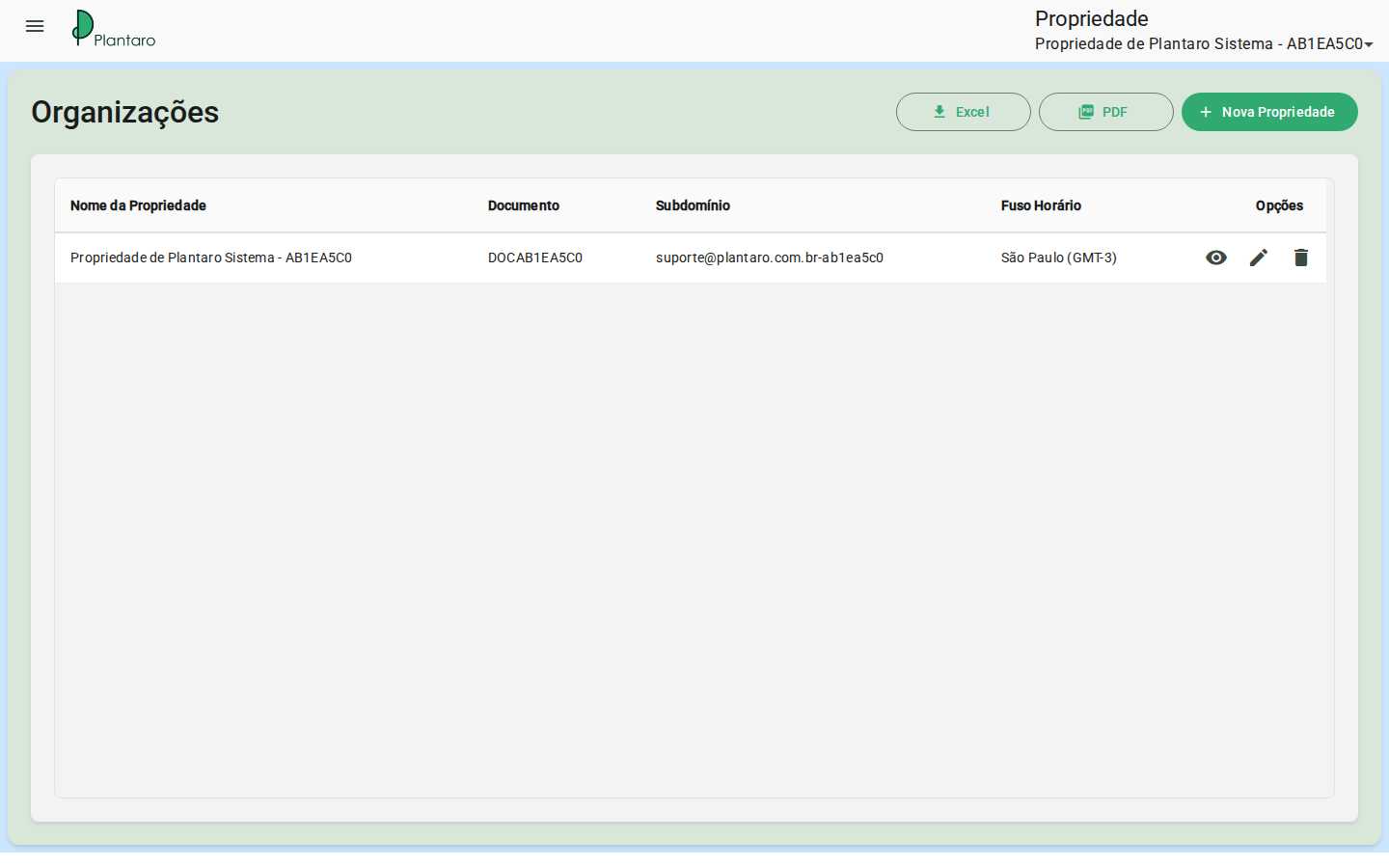
Expected result: administrative information reflects the active organization.
Users
- Go to
/:organizationId/users/list. - To create a user, go to
/:organizationId/users/new. - To edit, go to
/:organizationId/users/edit/:id. - To change your own password, go to
/:organizationId/users/change-password.
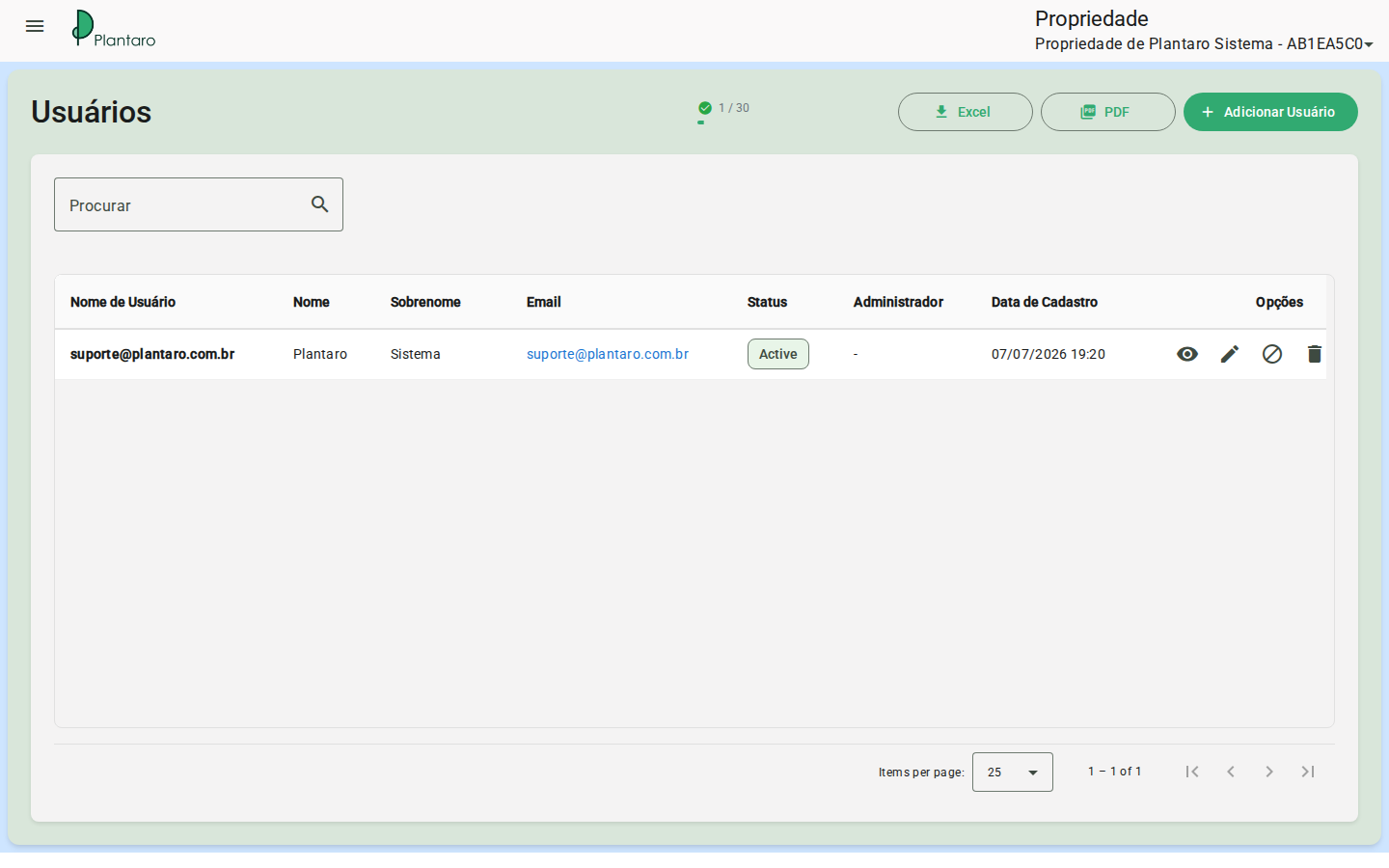
Expected result: authorized users can be listed, created, edited, and have their password changed according to permission.
Subscription and Plan
- Go to
/:organizationId/billing. - Check the Subscription overview.
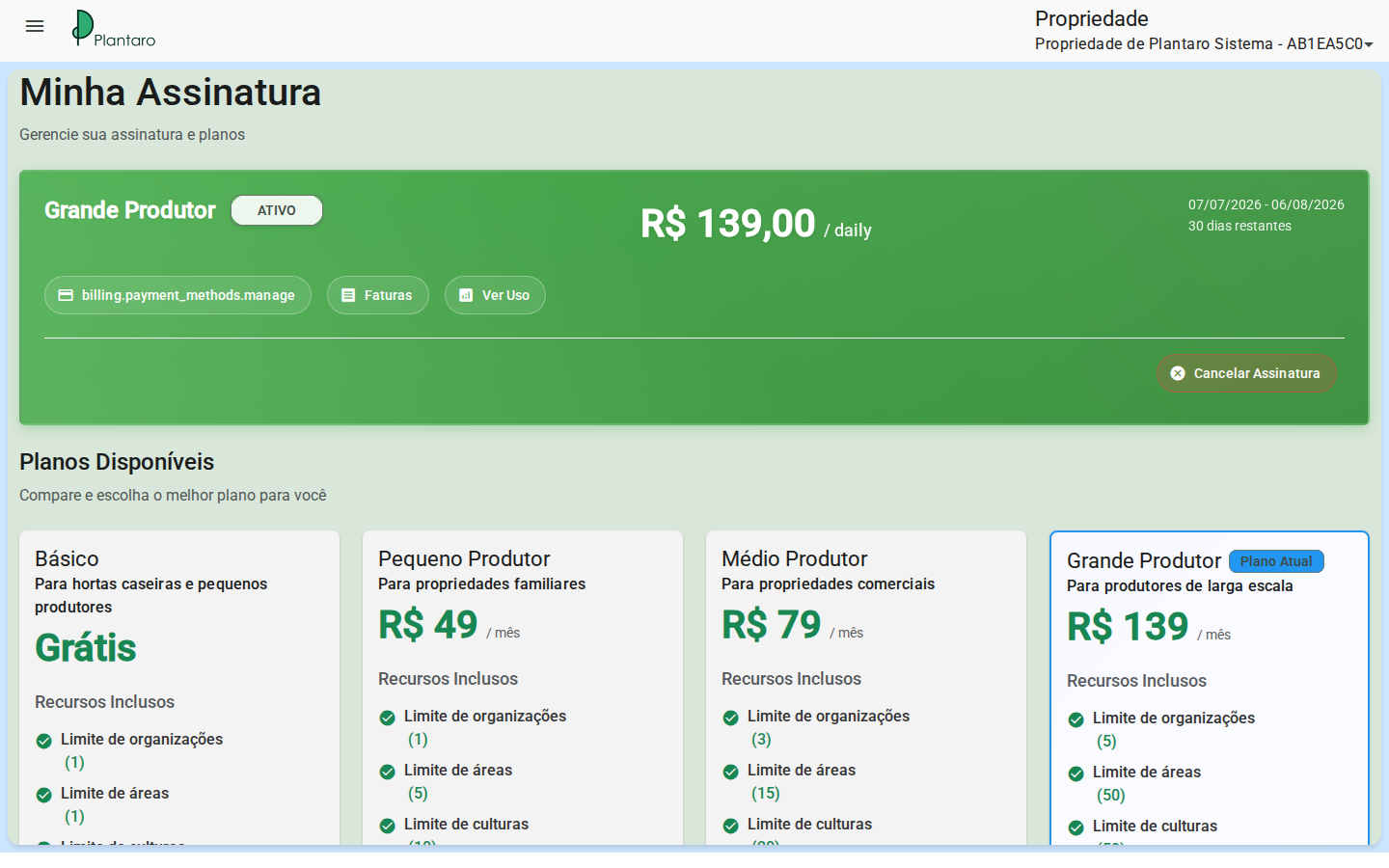
- Go to
/:organizationId/billing/plansto compare Plans. - Go to
/:organizationId/billing/usageto check Usage and limits. - Go to
/:organizationId/billing/invoicesto check Invoices.
Expected result: the user understands which limits affect the creation of areas, beds, resources, crops, and plans.
Payment, success and cancellation
- Use
/:organizationId/billing/payment-processingonly in a secure environment. - Do not trigger a real charge during documentation.
- Consult return routes only when generated by the test flow:
subscription-success,subscription-cancel,upgrade-success, andupgrade-cancel.
Expected result: payment states are documented without triggering a real charge.
Errors and empty states
- No permission for Users: request an administrative profile.
- Plan limit reached: review Usage and upgrade the plan if necessary.
- Empty invoices: may indicate an organization without a billing cycle in the sandbox.