Areas, modules and beds
When to use
Use Areas and Beds to represent the physical structure where production plans will be allocated.
Pre-conditions
- Logged in.
- Organization selected.
- Permission to create and edit areas.
Sample data used
- Area:
Horta Demonstracao. - Module:
Modulo A. - Beds: fictitious beds to demonstrate availability and blocking.
Step by step
List areas
- Go to
/:organizationId/garden/list. - Check the registered areas.
- Open an existing area or start a new one.
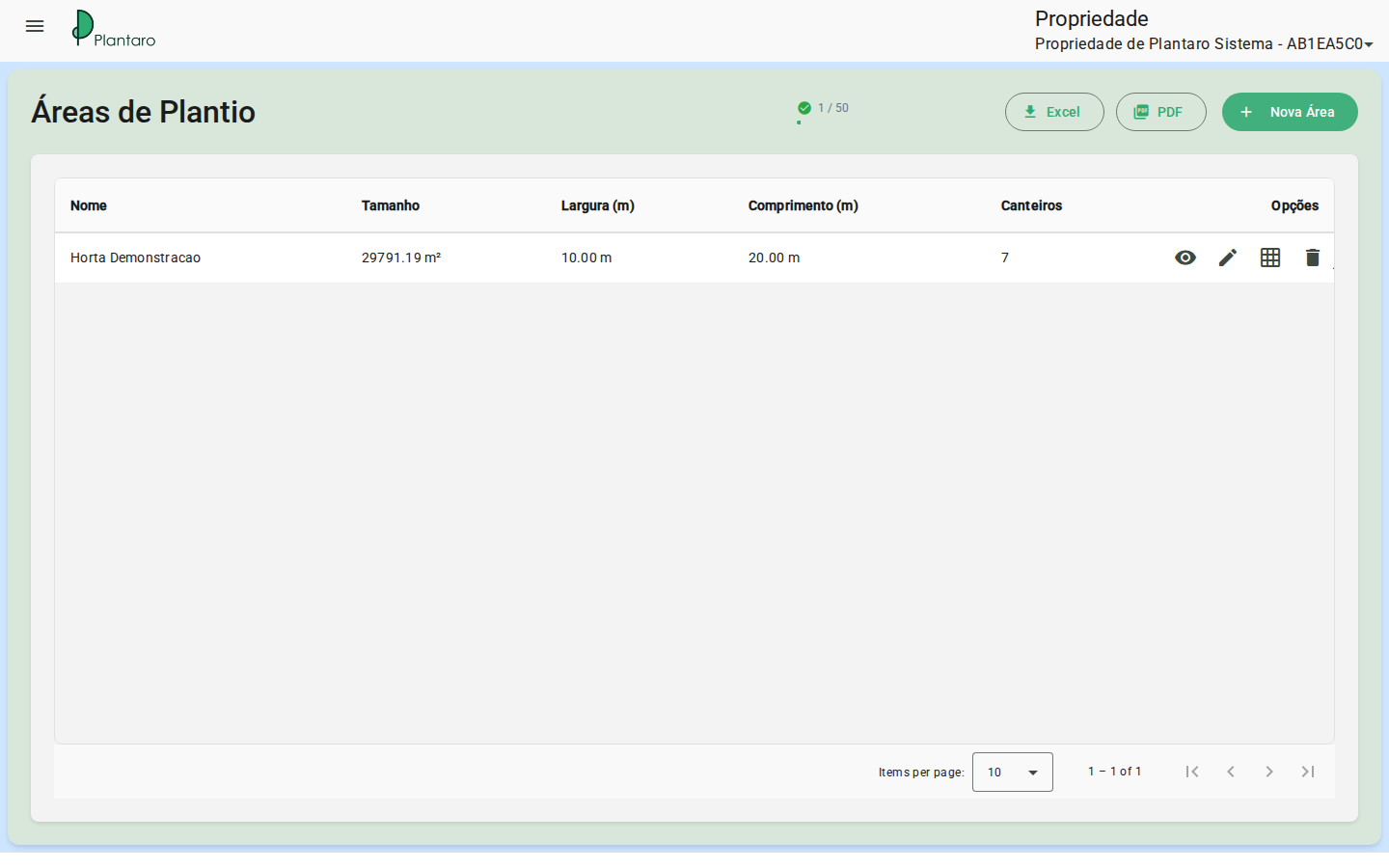
Expected result: the list shows areas of the active organization.
Create area
- Go to
/:organizationId/garden/new. - Fill in the area's required fields.
- Save.
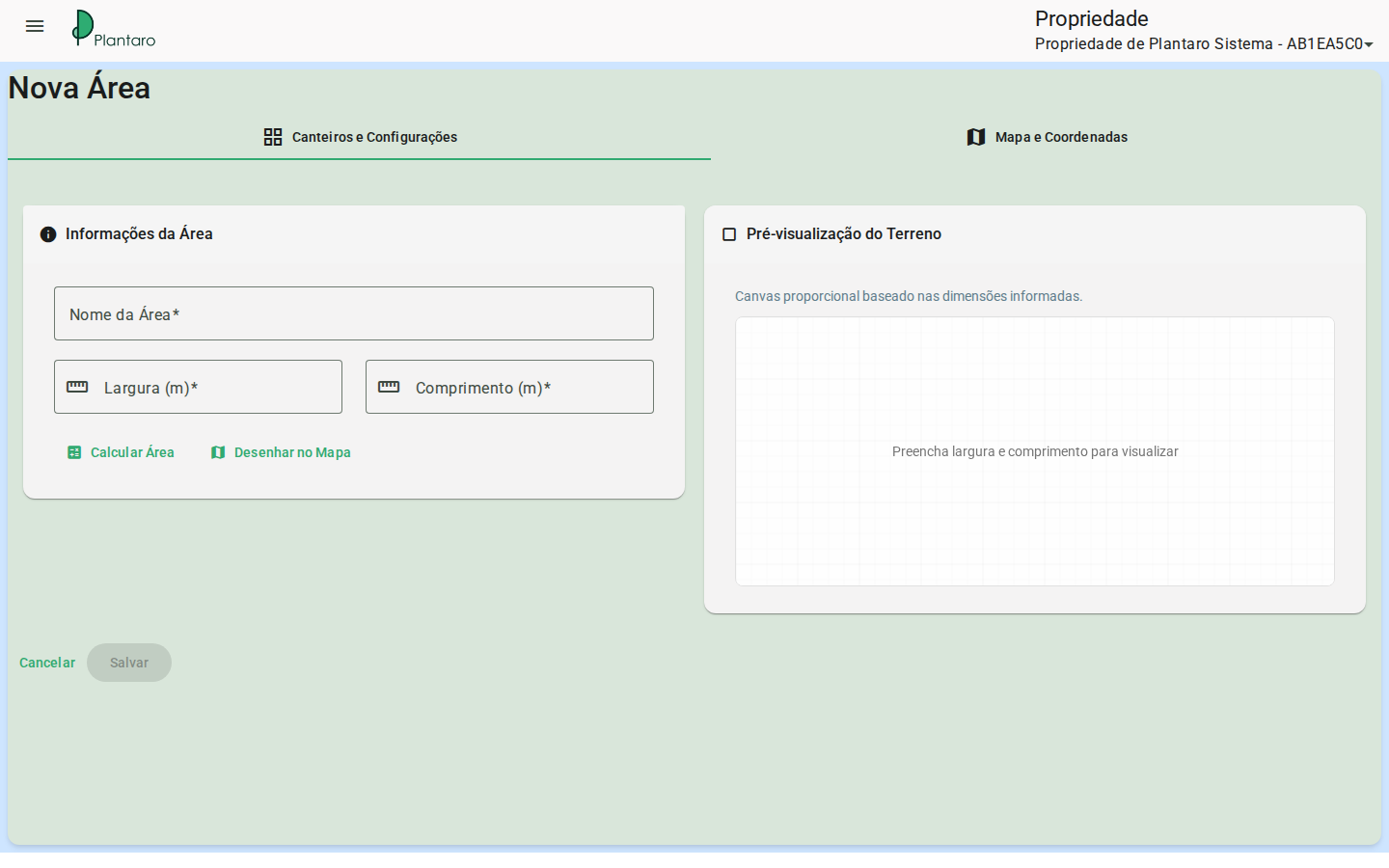
Expected result: the area becomes available for modules, beds, and plans.
Edit area
- Go to
/:organizationId/garden/:id/edit. - Adjust the area's administrative or physical data.
- Save before leaving.
Expected result: the updated data appears in the listing.
Modules
- Go to
/:organizationId/garden/modulesto view general modules. - Go to
/:organizationId/garden/:id/modulesfor a specific area's modules. - Check the links between area and module.
Expected result: modules organize the area's beds.
Area geometry
When creating or editing an area, the geometry can be defined in two modes:
- Metric mode: entering width and length directly.
- Map mode: drawing a polygon by coordinates, with an option to use current geolocation.
The screen shows a proportional preview of the land and calculates the area based on the entered data.
Bed manager
- Go to
/:organizationId/garden/:id/beds. - Use the screen's tools to generate, slice, or adjust beds.
- Save changes before leaving.
Expected result: beds become available for allocation in plans.
The bed manager has three modes:
Manage: view and track existing beds, including occupancy by date.Generate: generate a new bed layout by parameters (width, length, spacing, margins), with a preview before saving.Regenerate: replace the existing layout; restricted when there are active allocations on the beds.
Slicing
Slicing divides an area or module into individual beds based on the parameters entered in Generate mode. Review the preview before saving, since slicing redefines the beds available for allocation in plans.
Bed states
- Available: can receive a crop in a plan.
- Blocked: should not be used for new allocation.
- Linked to a plan: may appear occupied depending on the period and planning.
Errors and empty states
-
Leaving with unsaved changes: confirm whether to discard or save before leaving.
-
Map or canvas without details: check the screen's dimensions and zoom.
-
Bed unavailable: check blocks, existing plans, and the selected period.
-
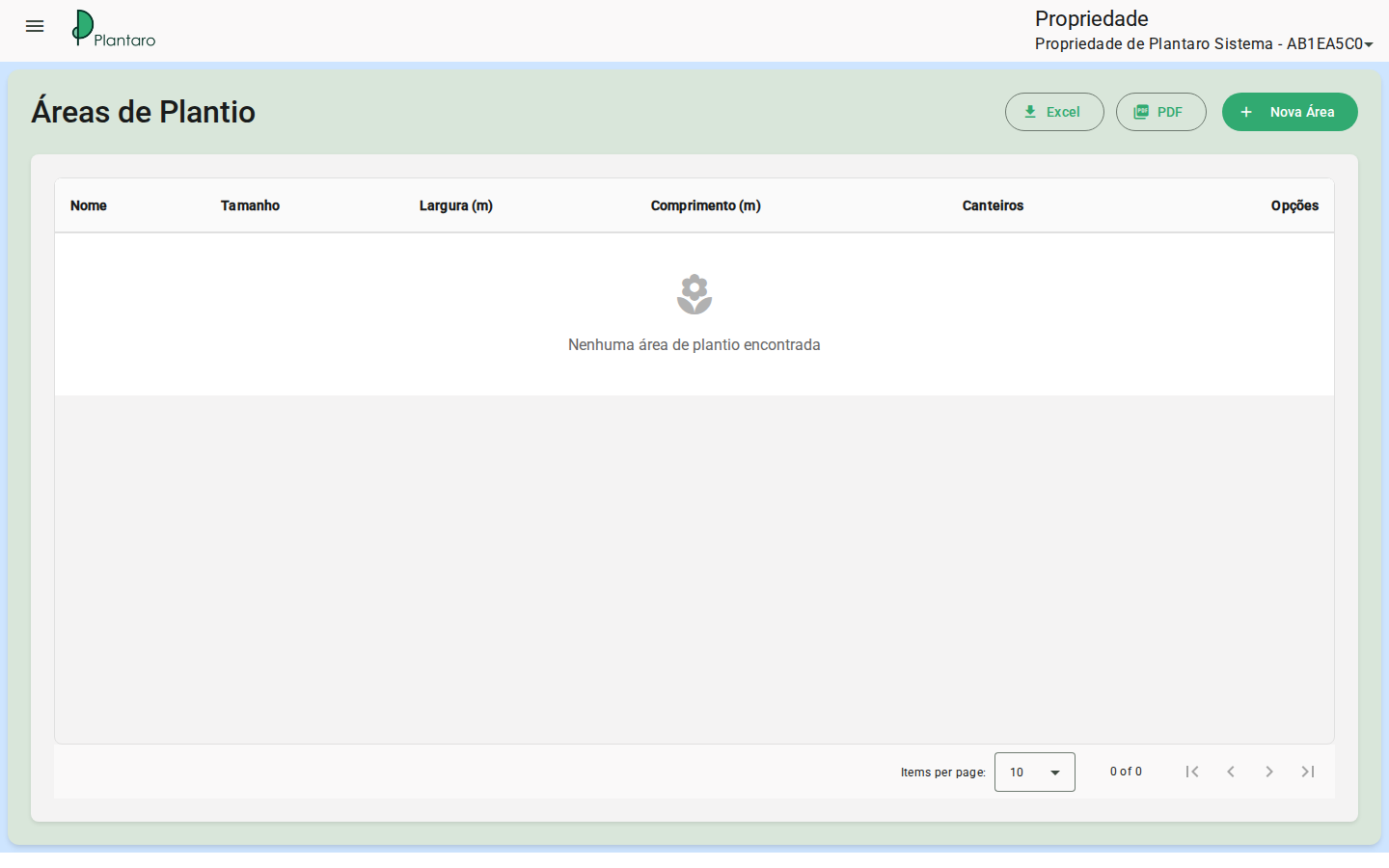
Empty area list: happens in new organizations, before the first registration.